
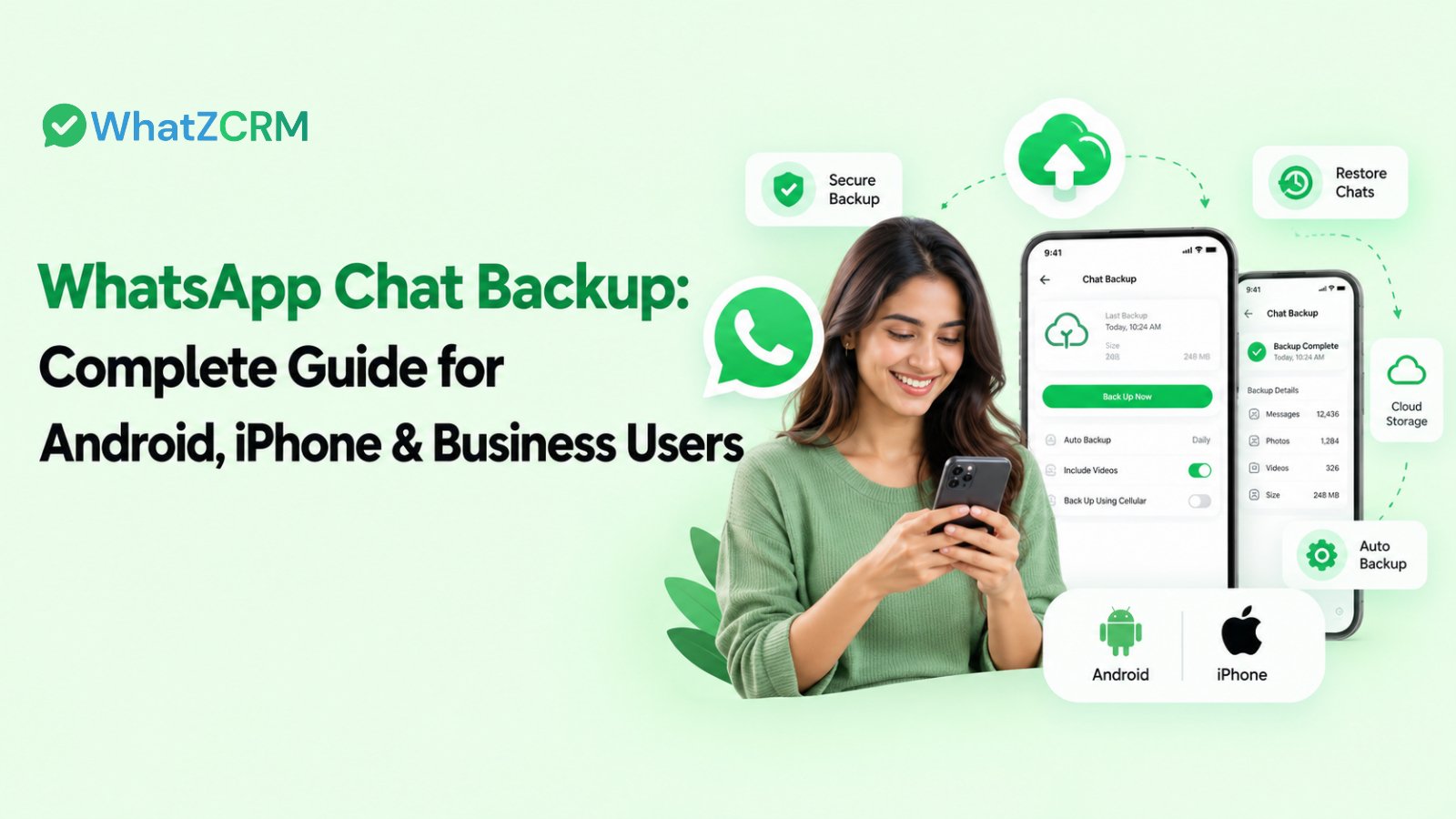

To back up WhatsApp chats, open Settings > Chats > Chat backup. On Android, tap Back up to save to Google Drive. On iPhone, tap Back Up Now to save to iCloud. To restore, reinstall WhatsApp, verify the same phone number, and tap Restore when prompted. Menu wording can vary slightly by app version.
Losing years of WhatsApp chats is painful for anyone. For a business, it can mean lost order details, missed leads, and no proof of what a customer was promised. This guide covers how to back up and restore WhatsApp on Android and iPhone, how it works for WhatsApp Business users, and what teams should do when one phone holds too much of the company’s memory.
What Is a WhatsApp Backup (and What It Is Not)?
A backup is a saved copy of your chats and media, stored in Google Drive, iCloud, or on your phone. You use it to get your messages back after reinstalling WhatsApp or switching phones.
Three things get confused:
- Backup: a full copy of chats and media, used to restore on the same platform.
- Transfer: moving chats directly from one phone to another, including across platforms.
- Export: saving a single chat as a file to share or archive. You can’t restore it into WhatsApp.
Backup Methods at a Glance
Android | iPhone | |
Where it is saved | Google Drive (plus a local copy on the phone) | iCloud |
Path | Settings > Chats > Chat backup | Settings > Chats > Chat Backup |
Manual backup | Tap Back up | Tap Back Up Now |
Automatic backup | Daily, weekly or monthly | Daily, weekly or monthly |
Restore requires | Same number and same Google account | Same number and same Apple ID |
How to Back Up WhatsApp on Android
- Open WhatsApp and tap the three dots, then Settings.
- Go to Chats > Chat backup.
- Tap Back up to Google Drive and choose a frequency: daily, weekly, monthly, or only when you tap Back up.
- Select the Google account to use, and choose Wi-Fi only or Wi-Fi plus mobile data.
- Decide whether to include videos, then tap Back up.
Example: You back up on Monday, then take a large order on Tuesday. If your phone is lost on Wednesday, Tuesday’s order chat is not in the backup. For active business chats, back up manually before any risky change, such as a phone update or repair.
India note: Google Drive storage is shared across Gmail, Photos, and Drive, and WhatsApp backups now count towards that free 15 GB. Many Indian users hit this limit without noticing, and backups quietly fail. Check your storage in Google One, and consider leaving videos out of the backup.
Android also keeps local backup files on the phone itself, usually for the last few days. They help if you lose the app but not the phone.
How to Back Up WhatsApp on iPhone
- Make sure you are signed in to iCloud and iCloud Drive is on.
- Open WhatsApp, go to Settings > Chats > Chat Backup.
- Tap Back Up Now, or switch on Auto Backup and choose a frequency.
- Wait until the screen shows a new “Last Backup” time before you do anything else.
The free iCloud allowance is 5 GB, and your iPhone backup, photos, and WhatsApp all compete for it. WhatsApp advises having considerably more free space than the backup size, so check your iCloud storage before blaming WhatsApp for a failed backup.
Where Can You Find Your WhatsApp Backup?
You will not see WhatsApp backups as normal files. On Android, open Google Drive, go to Settings > Backups, and look for WhatsApp. On iPhone, backups are held inside iCloud and are managed under Settings > [your name] > iCloud > Manage Storage. You cannot open or read them outside WhatsApp, which is why exported chat files are not a substitute.
How to Restore WhatsApp Chats From a Backup
- Install WhatsApp on the new or reset phone.
- Verify the same phone number you used for the backup.
- Sign in with the same Google account (Android) or Apple ID (iPhone).
- When prompted, tap Restore.
- Let the chats load first. Media continues downloading afterwards.
If the restore option never appears, the usual causes are a different number, a different Google or Apple account, or a backup that was never completed.
Switching Phones: Transfer Without a Backup
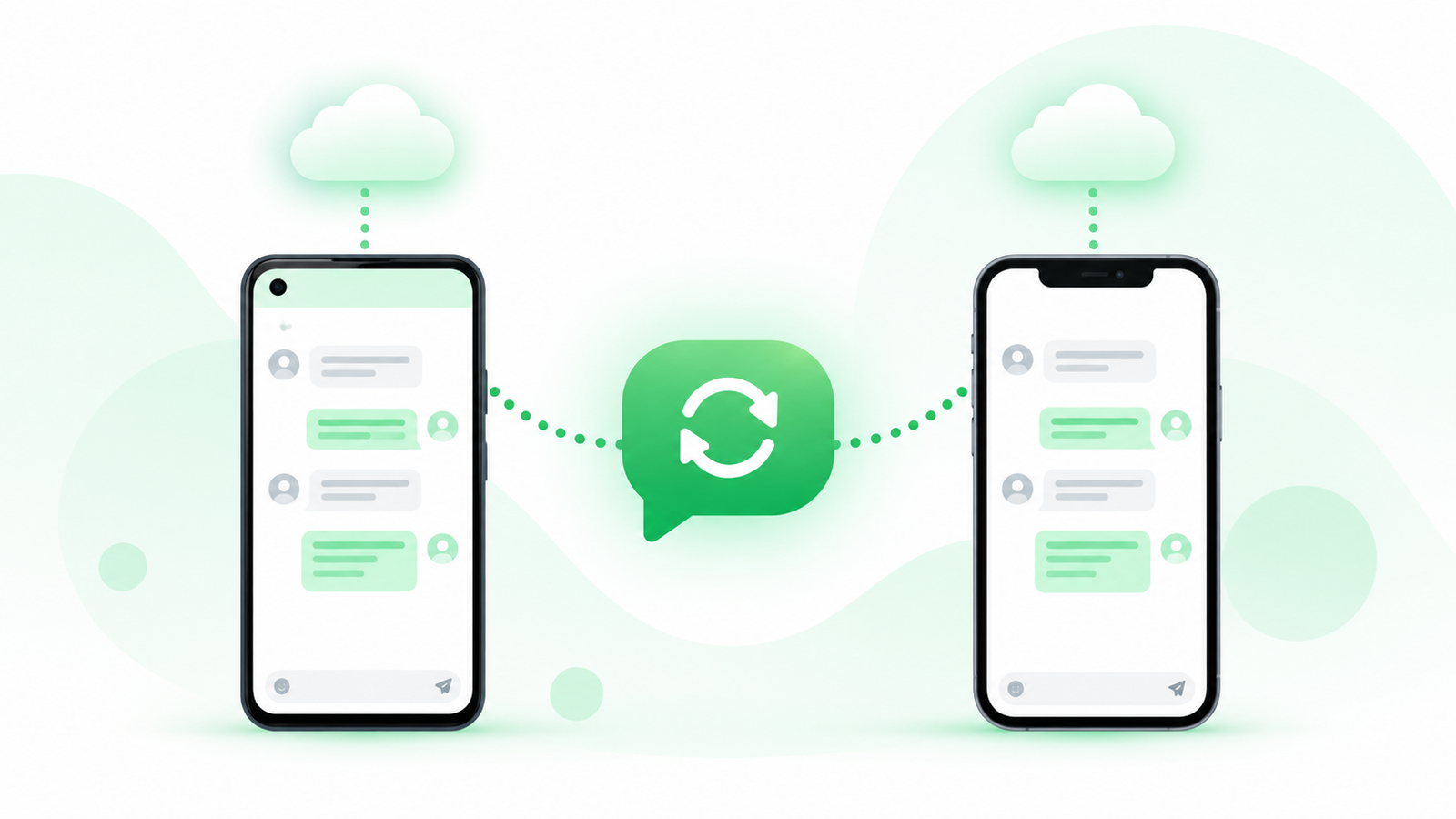
Backups do not work across platforms, so an Android backup cannot be restored on an iPhone. For that move, use the official tools: Move to iOS from Android to iPhone, and Move to Android from iPhone to Android. Both need the phones to be set up in a specific way, so check WhatsApp’s current help page before you start.
Encrypted Backups and Security
By default, backups sit outside WhatsApp’s end-to-end encryption and rely on Google or Apple’s own protection. You can switch on end-to-end encrypted backup under Chat backup and secure it with a password or a 64-digit key. Store that password safely, because if you lose it, nobody can recover the backup, including WhatsApp.
WhatsApp Business App Backup
The WhatsApp Business app backs up the same way as regular WhatsApp, through Settings > Chats > Chat backup. Two details matter:
- Business and personal WhatsApp backups are separate, so you must back up each app on its own.
- Business chats often hold quotes, addresses, and payment confirmations, so a weekly backup is too slow. Use daily, and add a manual backup after busy days.
The Team Problem: When One Phone Holds Everything
Phone backups work well for one person. They fail for a business team:
- One device, one point of failure. If the owner’s phone breaks and the backup is stale, the whole customer history goes with it.
- Staff leave and take history with them. Chats on an employee’s phone are not company property in any practical sense.
- No search or accountability. You cannot see who replied to which customer, or find a past promise quickly.
- Multi-device limits. Linked devices help, but they are not a record of who handled what.
A backup protects a phone. A CRM protects the conversation.
Why Your Chat History Should Live in a CRM
With a WhatsApp CRM like WhatZCRM, every customer conversation is stored against a contact record rather than on someone’s handset. That changes the backup question completely:
- No phone backup risk. Chats sit in the platform, not on a device that can be lost.
- Shared team inbox. Multiple agents work from one number through a Unified Inbox, with a clear record of who said what.
- Searchable history. Find an old quote or address in seconds.
- CRM tagging. Label chats by lead stage, product, or issue so history becomes usable data.
- Continuity. When an agent leaves, the customer thread stays.
Moving From the WhatsApp Business App to the API
Many Indian SMBs outgrow the Business app and move to the WhatsApp Business API. Before you switch:
- Back up the Business app first. Chat history does not always carry over automatically, and Meta’s migration options change, so check the current rules.
- Export key chats (top customers, open orders) as a safety copy.
- Choose a provider that stores conversations and lets you export them.
- Brief your team on the new shared-inbox workflow.

Compliance and Retention
If you handle customer data, think about how long you keep chats and who can see them. Decide a retention period, restrict access by role, and make sure deleted-customer requests can be honoured. Chats scattered across personal phones make all three hard. Centralised records make them manageable. Seek legal advice for your sector, as rules differ.
Common Backup Problems and Fixes
Problem | Likely cause | Fix |
Backup stuck at 0% | Weak connection or low storage | Switch to Wi-Fi, free up Google Drive or iCloud space, and retry |
Backup not found | Different number or account | Use the same number and the same Google or Apple account |
Restore option missing | Backup never completed | Check the “Last Backup” time on the old phone |
Backup very slow | Large video library | Exclude videos and back up again |
Old backup restored | A newer backup was not completed | Back up manually, then confirm the new time |
Forgot encryption password | Password cannot be reset | Start a new backup; the old one is unrecoverable |
How to Export a Single Chat
Open the chat, tap the name at the top, choose Export chat, then pick with or without media. It creates a file you can email or save. It is useful as a record of one conversation, but it cannot be restored into WhatsApp.
Conclusion
Back up daily if the chats matter, check the “Last Backup” time, keep an eye on storage, and turn on encryption if you are careful about privacy. If WhatsApp runs your sales or support, though, a phone backup is only a safety net. Moving conversations into a shared CRM gives you continuity, searchability, and control.
Ready to stop depending on one phone? Start a 7-day free trial of WhatZCRM and keep every customer conversation in one place.