

More than 3 billion people use WhatsApp every single day. Across India, Southeast Asia, Latin America, and Europe, it is the first app customers open when they have a question, complaint, or purchase decision to make.
- WhatsApp messages have a 98% open rate, versus 20% for email
- 68% of customers say WhatsApp is their preferred channel to contact businesses
- 56% of customers abandon purchases because businesses respond too slowly
The solution is a structured WhatsApp customer support platform, not just a WhatsApp Business number on your website, but a complete, automated, team-ready setup that resolves issues faster, reduces agent workload, and builds long-term customer loyalty.
In this guide, you’ll learn exactly how to set up a professional WhatsApp customer support system from scratch in 7 clear steps using WhatZCRM’s WhatsApp CRM platform to automate, manage, and scale your support operations.
Also Read: How WhatsApp CRM Made Simple with WhatZCRM
Why WhatsApp Is the Smartest Customer Support Channel in 2026
Before we dive into the steps, let’s briefly cover why WhatsApp wins over traditional support channels:
Email: WhatsApp delivers responses in real time, keeps conversation history in a single thread, and doesn’t end up in spam folders. Customers get answers in minutes, not days.
Phone Support: No hold times. No IVR frustration. Customers can send a message when it’s convenient for them and pick up the conversation on their own schedule.
Website Live Chat: WhatsApp conversations follow the customer. If they close the browser, the chat doesn’t disappear; they can continue the conversation hours later from their phone.
Social Media DMs: WhatsApp offers end-to-end encryption, a verified business profile, and support for rich media (PDFs, images, videos, voice notes) all in a single channel your customers already trust.
For growing businesses, the real advantage of WhatsApp isn’t just convenience; it’s that a proper WhatsApp customer support system lets a small team handle the support volume of a much larger one.
Also Read: Top 10 WhatsApp CRM Tools Compared (2026)
Step 1: Get Access to the WhatsApp Business API
The first thing you need to understand is the difference between the WhatsApp Business App and the WhatsApp Business API:
| Feature | WhatsApp Business App | WhatsApp Business API |
| Max agents | 1–5 | Unlimited |
| Automation | Basic auto-replies | Full chatbot + workflow automation |
| CRM integration | None | Full integration |
| Analytics | None | Complete reporting |
| Scalability | Small teams only | Enterprise-ready |
If you’re serious about running customer support at scale with multiple agents, automated responses, and proper SLA tracking, you need the WhatsApp Business API.
You don’t need a technical developer to set this up. WhatZCRM handles the API onboarding in a guided, no-code wizard, so most businesses are live within one business day.
Also Read: WhatsApp Business API: The Complete Business Guide for Scalable Growth
Step 2: Build Your WhatsApp Business Profile for Support
Your WhatsApp Business Profile is the first thing a customer sees before they even send a message. A complete, professional profile builds instant credibility and sets expectations, reducing unnecessary queries before they start.
What to include in your support-optimized profile:
- Business Name: Use your brand name exactly as customers know it
- Profile Photo: Company logo
- Business Category: Customer Service, Retail, Healthcare, etc. Write a 2–3 line description that mentions your support hours and what customers can ask about. Example: “Get instant help with orders, billing, and technical issues. Available Mon–Sat, 9AM–7PM IST. Reply ‘Hi’ to get started.”
- Support Hours: Set accurate hours so customers know when to expect live responses
- Website URL: Link to your Help Center or Support Page
- Address: Include your registered business address for trust
Why this matters for support:
A complete profile reduces “Are you real?” questions and builds the psychological safety customers need before sharing account details or complaint information.
With WhatZCRM, your business profile syncs directly with your CRM every customer who messages you is automatically logged with their profile data, message history, and timestamps.
Step 3: Set Up Your Shared Multi-Agent Inbox
This is where most businesses fail. They give one person access to a WhatsApp Business number and hope for the best. When that person is busy, on leave, or overwhelmed, customers wait. Support quality collapses.
A shared multi-agent inbox lets your entire support team work simultaneously from a single WhatsApp number. Conversations are assigned, tracked, and resolved, with full visibility for every team member and manager.
WhatZCRM Feature: The shared inbox includes real-time CRM alerts when a ticket is reassigned or escalated, and the assigned agent receives an instant WhatsApp notification, improving response times.
Step 4: Deploy Your AI Support Chatbot for 24/7 Coverage
Here’s the most powerful lever in your WhatsApp customer support system: an AI-powered chatbot that works around the clock, answers frequently asked questions instantly, collects customer information, and routes complex queries to the right human agent.
Without a chatbot, every query outside business hours goes unanswered. With one, customers get instant responses at 3 AM on a Sunday, and your team wakes up to conversations that are already pre-qualified and organized.
What WhatZCRM AI Support Chatbot handles automatically:
- FAQ Automation: Pricing, return policy, order status, working hours, product information configured once, answered instantly, every time
- Lead Capture: Collects customer name, contact number, query type, and order ID before routing to an agent
- Ticket Creation: Auto-creates a support ticket in the CRM with a unique ticket ID and sends it to the customer
- Intent Detection: Understands whether the customer is asking about billing, delivery, technical issues, or complaints and routes accordingly
- Sentiment Analysis: Detects frustration or urgency in messages and escalates to a live agent automatically
- Multilingual Support: Responds in 50+ languages, critical for businesses serving India’s diverse market or global customers
- Rich Media Responses: Sends PDFs (product manuals, policy documents), images (how-to guides), and videos (tutorial walkthroughs) automatically based on query type
Setting up your bot in WhatZCRM (no-code):
- Open the Chatbot Builder in your WhatZCRM dashboard
- Choose from pre-built support templates or build custom flows with the drag-and-drop editor
- Map common customer intents to response flows (FAQs, ticket creation, agent handoff)
- Set escalation triggers, keywords, sentiment signals, or unrecognized inputs
- Test the bot in a sandbox before going live
- Activate and monitor performance from the analytics dashboard
When a query is too complex or sensitive for the bot, WhatZCRM seamlessly transfers the conversation to a live agent, passing along the full conversation context so the customer never has to repeat themselves.
Also Read: How to Build a WhatsApp Chatbot Without Coding (2026 Step-by-Step Guide)
Step 5: Create and Activate WhatsApp Message Templates
For proactive customer communication, order confirmations, shipping updates, appointment reminders, and payment alerts, WhatsApp requires pre-approved message templates (also called HSM templates).
These are structured messages that businesses can send outside the 24-hour customer-initiated conversation window. Getting this right is critical for a complete support experience.
Types of support templates you need:
- Ticket Acknowledgment Template
“Hi {{customer_name}}, we’ve received your support request! 🎫 Ticket #{{ticket_id}} is now open. Our team will respond within {{response_time}}. Track your ticket here: {{link}}”
- Order Update / Delivery Notification Template
“Hi {{name}}, your order #{{order_id}} has been {{status}}. Expected delivery: {{date}}. Questions? Reply to this message.”
- Issue Resolution Template
“Hi {{name}}, great news! Your ticket #{{ticket_id}} has been resolved. Let us know if you need anything else. Rate your experience: {{feedback_link}}”
- Appointment Reminder Template
“Reminder: Your appointment with {{agent_name}} is scheduled for {{date}} at {{time}}. Reply ‘CONFIRM’ to confirm or ‘RESCHEDULE’ to change.”
- Payment / Invoice Alert Template
“Hi {{name}}, your invoice #{{invoice_id}} of ₹{{amount}} is due on {{due_date}}. Pay securely here: {{payment_link}}”
Getting templates approved in WhatZCRM:
- Navigate to WhatsApp Message Templates in your dashboard
- Select template category: Utility, Marketing, or Authentication
- Write your template using approved variable formats ({{1}}, {{2}})
- Submit for Meta approval, typically approved within 10 minutes to 2 hours
- Once approved, templates are available for your automated workflows and manual agent use
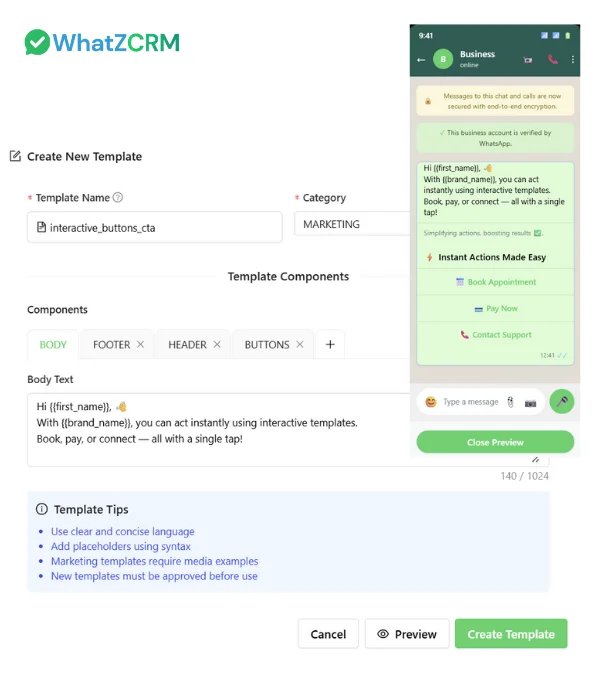
Keep templates conversational, not promotional. Utility templates (order updates, ticket confirmations) have higher approval rates and lower costs than marketing templates.
Step 6: Integrate WhatsApp with Your CRM and Business Tools
A WhatsApp support system operating in isolation creates more problems than it solves. Agents need customer history from your CRM. Support tickets need to sync with your help desk. Payments need to connect to your billing system.
Also Read: Which WhatsApp-Integrated CRM Should I Choose for Customer Support
Integration is what transforms a WhatsApp number into a true customer support command center.
Core integrations to set up with WhatZCRM:
E-commerce Integration (Shopify, WooCommerce)
- Agents can look up order IDs, delivery status, and payment history directly within the chat
- Automated order updates and cart recovery messages trigger via WhatsApp
Helpdesk / Ticketing Integration (Freshdesk, Zendesk via API/Webhook)
- New WhatsApp conversations automatically create tickets in your helpdesk
- Ticket status updates sync back to WhatsApp customers are kept informed without manual updates
Payment Integration (Razorpay, Stripe, PayPal)
- Send payment links directly inside WhatsApp conversations
- Customers pay without leaving the chat, reducing friction and abandoned transactions
Automation Platform Integration (Zapier, Make)
- Trigger WhatsApp messages from any event in your tech stack: form submissions, calendar events, CRM field changes, e-commerce events
- Build complex cross-platform workflows without writing code
Google Ads / Facebook Ads (Click-to-WhatsApp)
- Connect your paid ads directly to your WhatsApp number
- Every ad lead is captured, tagged with source data, and entered into your support or sales flow automatically
WhatZCRM makes this simple: All integrations are configured from a single dashboard with native connectors, pre-built templates, and no developer required.
Step 7: Track Performance and Optimize Your Support System
You can’t improve what you don’t measure. The final step in building your WhatsApp customer support system is setting up analytics and reporting so you can see exactly how your team is performing, where customers are dropping off, and how to improve.
The key metrics to track in your WhatZCRM analytics dashboard:
| Metric | What It Tells You |
| First Response Time (FRT) | How quickly your team or bot responds to new conversations |
| Average Resolution Time (ART) | How long does it take to fully resolve a customer issue |
| Bot Containment Rate | % of queries resolved by the chatbot without agent involvement |
| Agent Utilization Rate | Are your agents under- or over-utilized? |
| Customer Satisfaction Score (CSAT) | Post-resolution feedback score from customers |
| Ticket Volume by Category | Which issue types generate the most volume? |
| Unresolved/Escalated Rate | % of tickets that require escalation or remain open past SLA |
| Peak Hour Analysis | When do most customers reach out? Is your team staffed accordingly? |
Common Mistakes to Avoid When Setting Up WhatsApp Customer Support
Even businesses that follow the right steps often make these critical mistakes:
- Using a personal WhatsApp number for business support: This creates GDPR/data privacy risks, limits multi-agent access, and destroys professionalism. Always use the WhatsApp Business API through a verified BSP, such as WhatZCRM.
- Going bot-only without a human handoff path: Customers will always have complex queries that a bot can’t resolve. If there’s no clear escalation to a human agent, frustration spikes and trust collapses. Always configure a seamless human handoff in your chatbot flows.
- Not getting opt-in consent before proactive messaging: WhatsApp mandates that businesses obtain explicit opt-in before sending template messages. Skipping this step leads to account suspension. WhatZCRM’s opt-in tools make compliance simple.
- Neglecting response time SLAs: WhatsApp’s 24-hour session window means delayed responses can cut you off from the conversation. Set SLA alerts in your dashboard to ensure your team responds within your target window.
- Siloed WhatsApp is not integrated with CRM: Without CRM integration, agents have no customer context. They ask for information that the customer already provided. This is a major source of customer frustration and repeat contact.
WhatZCRM: Your Complete WhatsApp Customer Support Platform
Setting up all 7 steps above manually, juggling a BSP for API access, a chatbot builder, a CRM, a helpdesk, and analytics tools, is expensive, complex, and time-consuming.
WhatZCRM brings everything together in one platform:
✅ WhatsApp Business API access: set up in under 24 hours, no developer needed
✅ Multi-agent shared inbox: your entire support team, one WhatsApp number
✅ AI Support Chatbot: no-code drag-and-drop builder, 50+ languages, 24/7 availability
✅ Message template library: pre-built support templates, instant Meta approval
✅ E-commerce integration: Shopify, WooCommerce order updates
✅ Payment links: Razorpay, Stripe, inside WhatsApp
✅ Real-time analytics: FRT, CSAT, bot containment, agent performance
✅ CRM-triggered alerts: instant WhatsApp notifications for ticket escalations, SLA breaches
2,000+ businesses across 20+ industries trust WhatZCRM to power their WhatsApp customer support from e-commerce stores and healthcare clinics to logistics companies and financial services firms.
Final Thoughts
WhatsApp customer support isn’t a trend; it’s the direction all customer communication is heading. Businesses that build proper systems today will have a significant competitive advantage in customer retention, resolution speed, and support efficiency.
WhatsApp is no longer just a messaging app; it’s your fastest, most effective customer support channel.
By setting up a structured system with the WhatsApp Business API, automation, and CRM integration, you can respond faster, reduce workload, and deliver a seamless customer experience at scale.