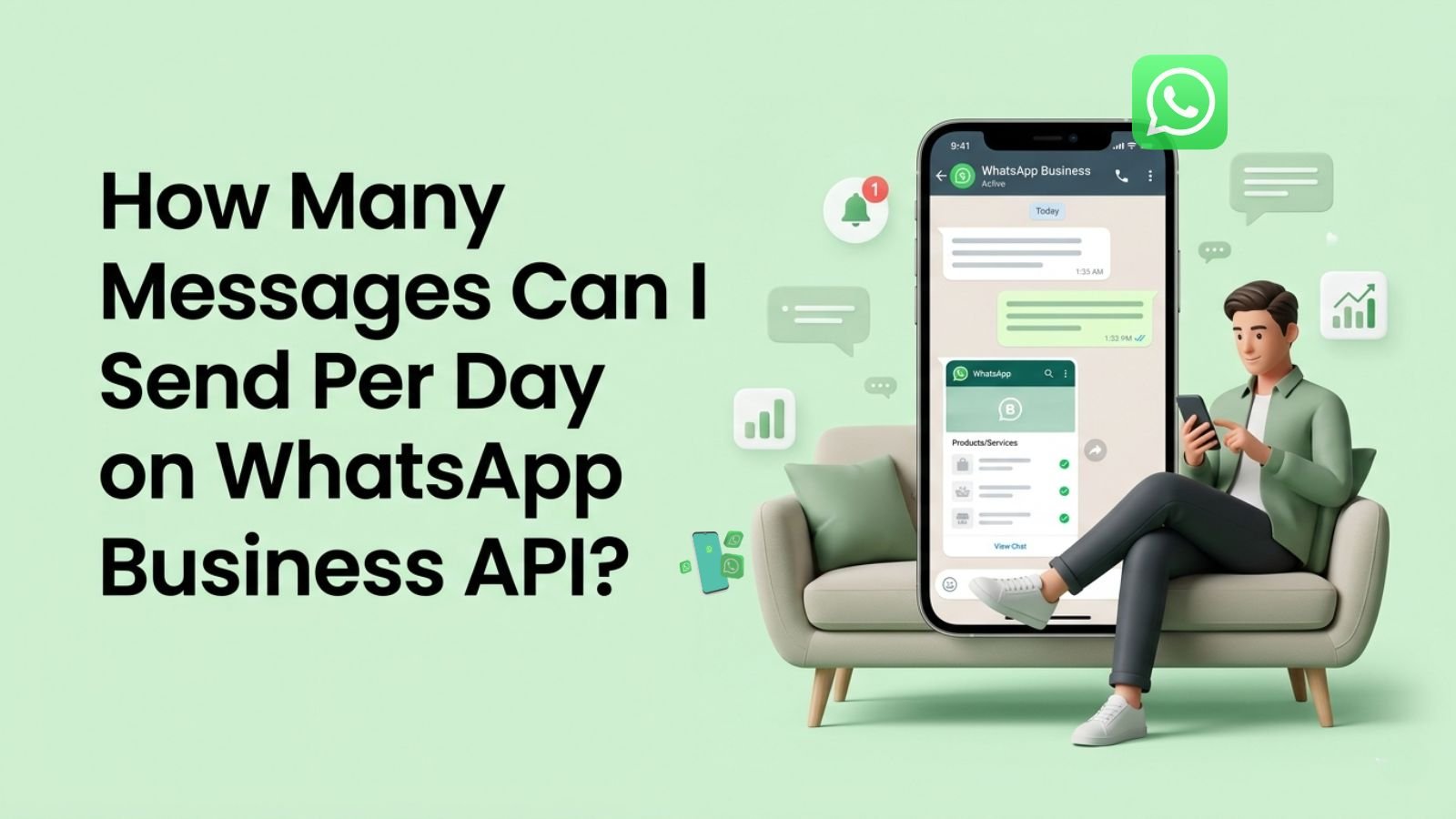

WhatsApp Business API messaging limits are not about the total number of individual messages you send. They measure how many unique users you can initiate a new conversation with in a rolling 24-hour window.
A business-initiated conversation begins when you send the first template message to a customer. It lasts 24 hours. Replies within an open customer-service window (after a customer messages you first) are unlimited and do NOT count against your daily cap.
WhatsApp Message Limits apply only to proactive outreach: broadcast campaigns, notifications, promotional messages, and abandoned cart reminders. Once a customer replies to you, a 24-hour service window opens in which you can send unlimited messages back.
Table of Contents
ToggleThe Four WhatsApp Business API Messaging Tiers
Meta organizes WhatsApp Business API accounts into tiers. Every verified business starts at Tier 1 and automatically advances based on quality and usage. Here is how the tiers break down:
| Tier | Daily Limit | Notes |
| Unverified | 250 unique users / 24 hrs | Default cap before verification |
| Tier 1 (Verified) | 1,000 unique users / 24 hrs | Starting tier for all verified businesses |
| Tier 2 | 10,000 unique users / 24 hrs | Most common growth tier |
| Tier 3 | 100,000 unique users / 24 hrs | Enterprise scale |
| Tier 4 | Unlimited | Special approval required |
These limits apply only to business-initiated conversations. Once a customer opens a conversation by messaging your business first, you can reply freely within 24 hours without those messages affecting your daily cap.
Unverified vs. Verified Business: What Is the Difference?
Business verification is the first major gate in the WhatsApp API ecosystem. Here is how the two account types compare:
| Account Status | Daily Limit | Can Scale Tiers? | All Templates Allowed? |
| Unverified business | 250 unique users | No | Limited |
| Verified — Tier 1 | 1,000 unique users | Yes (automatic) | Yes |
| Verified — Tier 2 | 10,000 unique users | Yes (automatic) | Yes |
| Verified — Tier 3 | 100,000 unique users | Yes (automatic) | Yes |
| Verified — Tier 4 | Unlimited | By approval | Yes |
⚡Important Note:
Even after verification, a low-quality rating can keep your account stuck at the 250-user cap until your ratings improve. Verification alone is not enough; quality matters equally.
Major 2025 Change: Account-Wide Shared Limits
⚡Update: October 7, 2025:
Starting October 7, 2025, WhatsApp changed how it calculates limits for businesses with multiple phone numbers. Instead of summing each number’s cap, the entire account now shares a single limit determined by the phone number with the highest tier.
For example, if your account has one number at the 10,000-user tier and another at the 100,000-user tier, your account-wide daily limit is 100,000 total, not 110,000. Any messages exceeding that shared cap will fail to send.
This makes it critical to:
- Concentrate your highest-volume campaigns on your top-tier number
- Upgrade that number’s tier if your combined daily volume is at risk of exceeding it
- Use the WhatsApp Manager to audit every number’s current tier
Additionally, Meta introduced faster tier scaling in 2025: the first-level limit for new numbers increased from 1,000 to 2,000, and the limit-increase criteria are now evaluated every 6 hours instead of every 24 hours, meaning promotion can happen significantly faster for consistent, high-quality senders.
How to Increase Your WhatsApp Business API Messaging Limit
Meta does not allow businesses to purchase a higher tier. Tier upgrades are entirely automatic, triggered when all three conditions below are met simultaneously:
- Status — Your phone number status must be “Connected” — not flagged or restricted.
- Quality — Your quality rating must be Medium or High — users are not blocking or reporting your messages at a high rate.
- Usage — In the past 7 days, you have initiated conversations with at least 50% of your current tier limit. For example, at Tier 1 (1,000), you need 500+ new conversations in the last 7 days.
When all three conditions are met, Meta upgrades your tier within 24 hours. In the updated 2025 system, checks happen every 6 hours, so scaling can occur noticeably faster.
Also Read: How to Send Bulk WhatsApp Messages Without Getting Banned in 2026
Practical Example: Moving from Tier 1 to Tier 2
| Day 1 | Day 2 | Day 3 | |
| New conversations initiated | 500 | 500 | — |
| Conversations (rolling 7 days) | 500 | 1,000 | — |
| Messaging tier | 1K | 10K | 10K |
Hitting the 500 threshold on Day 2 triggers the review, and the upgrade is applied 24 hours later. Aggressive, high-quality campaigns can move you up in as little as 48 hours.
What Causes Your Messaging Limit to Decrease?
Meta automatically lowers your messaging tier by one level if your phone number quality rating has been flagged for 7 consecutive days. A Flagged rating typically results from:
- A high rate of users blocking your number
- Users reporting your messages as spam
- Sending to users who have not opted in
- Overly promotional or irrelevant language in template messages
- Low engagement rates on broadcast campaigns
The demotion is immediate once the 7-day Flagged threshold is reached. There is no grace period once it triggers.
How to Check Your Current Messaging Limit
There are three official ways to view your current tier:
- WhatsApp Manager: WhatsApp Manager (Meta Business Suite): Go to WhatsApp Manager > Account Tools > Phone Numbers. Look for the “Messaging Limit” column next to your phone number. Note: the panel only shows an upgraded tier; if you are still at the default 250, it may not display a value.
- BSP Dashboard: Your BSP Dashboard: Most WhatsApp Business Solution Providers expose your current tier in their platform dashboard, often under Account Health or WhatsApp Account Review.
- Via WhatZCRM: If you are using WhatZCRM as your WhatsApp CRM platform, your current messaging tier, quality rating, and daily usage are visible directly from your WhatZCRM dashboard, with no need to navigate between Meta tools. This single-pane-of-glass view makes it easy to plan campaigns around your current capacity.
Also Read: Best WhatsApp API Service Providers for Businesses in 2026
How WhatZCRM Helps You Manage and Scale Your Limits
Understanding messaging limits is one thing. Managing them day-to-day, especially as your business scales, is where most teams run into trouble. That’s where WhatZCRM, a purpose-built WhatsApp CRM for the WhatsApp Business API, makes a real difference.
In conclusion
WhatsApp Business API messaging limits are designed around quality, user engagement, and responsible outreach, not just volume. Instead of counting total messages, the platform focuses on how many unique users you initiate conversations with in a 24-hour window. As your business maintains a strong quality rating and consistent usage, your messaging capacity can scale automatically across tiers. By prioritizing opt-in audiences, relevant communication, and high engagement, businesses can not only avoid restrictions but also unlock higher messaging limits and drive better results from their WhatsApp campaigns.
Frequently Asked Questions
Yes. Once a customer sends you a message, a 24-hour customer service window opens. Within that window, you can reply as many times as you like with any content; these messages do not count against your daily business-initiated limit.
With the WhatsApp Business API, you can send messages based on Meta’s messaging tiers:
Tier 1: 1,000 unique users per 24 hours
Tier 2: 10,000 users per 24 hours
Tier 3: 100,000 users per 24 hours
Tier 4: Unlimited messaging
You can send multiple messages to the same user within a 24-hour session window.
The WhatsApp Business App has no fixed daily limit but restricts broadcasts to 256 contacts per list and limits automation. For higher volumes, the WhatsApp Business API offers scalable, tier-based messaging.
Yes, but only when used to initiate a business-initiated conversation. Each unique phone number you send a template to for the first time in a 24-hour period counts as one unit against your tier cap.
There is no fixed safe limit, but sending messages only to opted-in users and gradually increasing volume helps avoid bans. Maintaining high engagement and avoiding spam behavior is essential for account safety.